MXM FX Convolution manual
Source code on GitHub · Questions on Discord
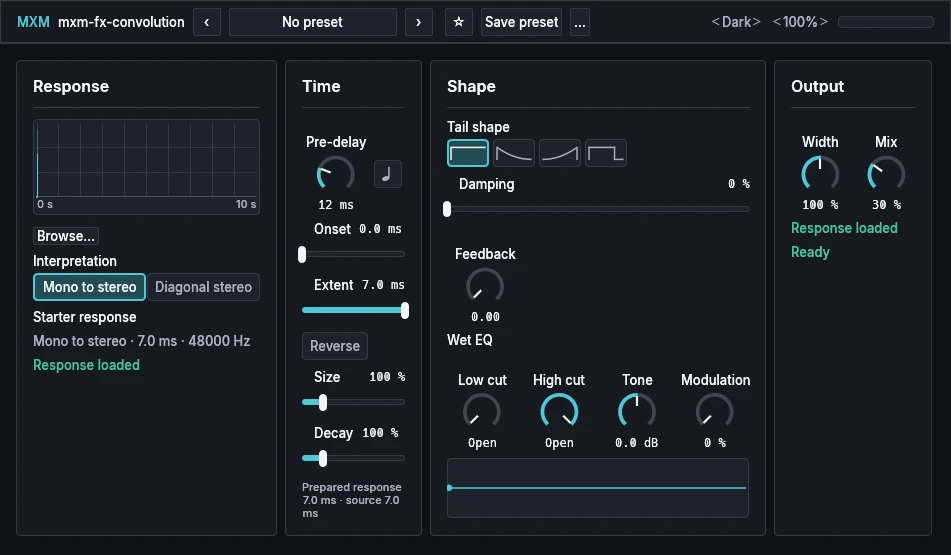
This manual explains where MXM FX Convolution gets its impulse responses and how to load one, then goes through it card by card. What every MXM editor shares, such as presets, pages, zoom, themes and the keys, is in Using the MXM editors.

App bar
Nothing beyond the shared preset row, Theme, Scale and a level meter whose clip light stays on until you click it. Save preset is unavailable while a preset is still being prepared. Width and Mix are on the Output card.
MXM Impulses
The rooms the effect comes with are not inside the plugin. They are a separate download, MXM Impulses, which MXM Portal installs when it installs MXM FX Convolution, and removes when you remove the last plugin that uses it. The portal places and removes its own files one by one, so WAVs of your own in the same folder stay where they are.
On Windows the folder is %LOCALAPPDATA%\mxm\impulses, on macOS ~/Library/Application Support/mxm/impulses, and on Linux ~/.local/share/mxm/impulses. It holds 100 rooms in nine folders:
| Folder | Rooms |
|---|---|
| Chambers | 9 |
| Halls | 14 |
| Industrial | 7 |
| Rooms | 18 |
| Studios | 13 |
| Transit | 9 |
| Vehicles | 5 |
| Venues | 12 |
| Worship | 13 |
Each room is a simulated, generic space, not a copy of a real building, rendered by our own room-modelling tool. Each is heard from a far position as a stereo pair, stored as a 32-bit float WAV at 48 kHz, peaking at −1 dBFS and ending by 10 seconds. The direct sound is left out of each file. The set is about 165 MB and free under the GNU General Public License, version 3 or later.
There are three ways to load a response:
- From the preset browser. Click the preset name in the app bar. Every WAV in the impulses folder is a factory preset there, grouped by folder in the Categories column. Its name comes from the file name:
recital-hall.far.stereo.wavis listed as Recital hall. Choosing one loads that room with every other control at its default. The list is read when the editor opens. - With the Browse… button. It sits on the Response card and opens a file dialog, in the impulses folder when it is installed. Pick any mono or stereo WAV.
- By dropping a file. Drag a WAV from your desktop onto the energy display at the top of the Response card.
To make one of your own WAVs a preset, copy it into the impulses folder. It is listed the next time the editor opens.
The effect takes files ending in .wav or .wave, mono or stereo, at 8 kHz to 384 kHz, in integer or float format. A file longer than 10 seconds keeps its first 10 seconds, with a smooth fade to zero at the end. While a file loads, the current response keeps playing. If it fails, the status line says “Could not load:” and the reason, and the current response keeps playing.
A loaded response is saved inside the project and inside any preset you save, never as a path to the file. The project opens on a computer that doesn’t have the WAV.
Response
| Control | Range | Init |
|---|---|---|
| Browse… | Opens a file dialog | |
| Interpretation | Mono to stereo, Diagonal stereo | Mono to stereo |
The display draws the response’s energy on a fixed axis of 0 to 10 seconds, one bar per 50 ms, from 0 dB down to −72 dB, with guides every second and every 24 dB. The pale part of each bar is the peak and the solid part the average level. A frame marks the part of the response in use, and a marker shows the energy coming out as you play. The display is also where you drop a file.
Under it are the response’s name, a line such as “Mono to stereo · 7.0 ms · 48000 Hz”, and a status line: Response loaded, Loading, Switching, Updating the response, or an error.
Interpretation is offered only for a stereo file. Mono to stereo hears the file as one response, spread across both sides. Diagonal stereo plays each input side through its own side of the file. A mono file is simply Mono, with no switch.
Time
| Control | Range | Init |
|---|---|---|
| Pre-delay | 0 ms to 500 ms | 12 ms |
| Pre-delay sync | Off, On | Off |
| Onset | 0.0 ms to the response’s length | 0.0 ms |
| Extent | 0.1 ms to the response’s length | The whole response |
| Reverse | Off, On | Off |
| Size | 25 % to 400 % | 100 % |
| Decay | 25 % to 400 % | 100 % |
Pre-delay delays the start of the reverb; the dry sound stays on time. It moves without a jump. Pre-delay sync is the note symbol beside the knob. With it on and a tempo from the host, the knob picks a note length from 1/64 to 1/4.
The other five controls on this card, and Tail shape and Damping on the next, prepare the response itself. They are worked out from the untouched file each time, saved with the response in the project and in presets, and they are not host parameters, so they can’t be automated. A slider takes effect when you let go of it. The old response keeps playing until the new one is ready, then the two crossfade over 20 ms. The caption at the foot of the card, “Prepared response … ms · source … ms”, gives the length of both.
Onset is where the response starts in the file; anything before it is skipped. Extent is how much of it is kept. Reverse plays the reverb backwards, so it swells up into the sound. Size makes the space bigger or smaller, with 100 % as recorded; it resamples the response, so its length and its colour move together. Decay shortens or lengthens the tail. Lengthening can only keep or raise energy that is already late in the file, so it can’t add a tail the room never had.
A prepared response can be at most 10 seconds long at up to 96 kHz. A setting that would go past that is held at the largest value that fits, and the card says so.
Shape
| Control | Range | Init |
|---|---|---|
| Tail shape | Natural, Fade, Swell, Gate | Natural |
| Damping | 0 % to 100 % | 0 % |
| Feedback | 0.00 to 1.25 | 0.00 |
| Low cut | Open to 4.0 kHz | Open |
| High cut | 0 Hz to Open | Open |
| Tone | −6.0 dB to +6.0 dB | 0.0 dB |
| Modulation | 0 % to 100 % | 0 % |
Tail shape is the row of four pictures. Natural is the response as recorded. Fade fades the tail to silence by its end. Swell swells the tail up towards its end. Gate holds the tail, then stops it dead three quarters of the way through. Damping darkens the tail as it goes on; at zero it is left as recorded. Both prepare the response, as the Time card’s controls do.
Feedback feeds the reverb back into itself for a longer tail. At zero it is off entirely. It plays the reverb through the same response again, which lengthens, smears and usually darkens the tail, so it is not the same room held longer. 1.00 is the point where the reverb would start to sustain by itself, and the knob goes on to 1.25. Past 1.00, a response that allows it sustains as a roar. A soft saturator in the feedback path keeps that roar in bounds; it is the only thing in the effect that distorts. While Feedback is that high, the plugin tells the host to keep it running until you lower Feedback or set Mix to zero.
The Wet EQ row works on the reverb only. Low cut removes low end, from Open (nothing removed) up to 4.0 kHz. High cut removes high end, from fully closed at 0 Hz at the bottom of its travel to Open, 20 kHz, at the top. Tone tilts the reverb darker or brighter; zero is flat. Modulation adds gentle movement to the reverb after the response is applied.
The strip at the bottom of the card draws your response as it will sound, with every setting applied.
Output
| Control | Range | Init |
|---|---|---|
| Width | 0 % to 200 % | 100 % |
| Mix | 0 % to 100 % | 30 % |
Width narrows or widens the reverb’s stereo image. Mix is a straight crossfade between the dry sound and the reverb. Because every response is brought to the same loudness, the two are equally loud at 50 % whichever room is loaded. At zero the effect turns off after a 12 ms fade: the dry sound passes untouched, a mono input copied to both sides, and the reverb is cleared.
Below the knobs, the response’s status line repeats, with a second line: “Off · exact dry after the fade”, “Tail active” or “Ready”. If invalid input ever reaches the effect, it is replaced with silence, and the card shows “Numeric fault” with an Acknowledge fault button to clear the message.
Init and automation
Init is every control at its default with a 7 ms starter response, so the effect makes a sound as soon as you insert it. Once you have loaded a WAV, Init patch keeps that WAV and its interpretation, and sets the preparation and the live controls back to neutral.
Nine controls can be automated: Mix, Pre-delay, Pre-delay sync, Low cut, High cut, Tone, Width, Modulation and Feedback. The effect runs at host sample rates from 8 kHz to 384 kHz; at any other rate it passes the dry sound and the reverb is silent. There is no MIDI or side-chain input, no limiter, no automatic gain and no Freeze.